
ZCode Remote Control with GLM-5.2: Phone Scope and Safety
Independent research — not an official Z.ai publication.Identity and provider disclosure

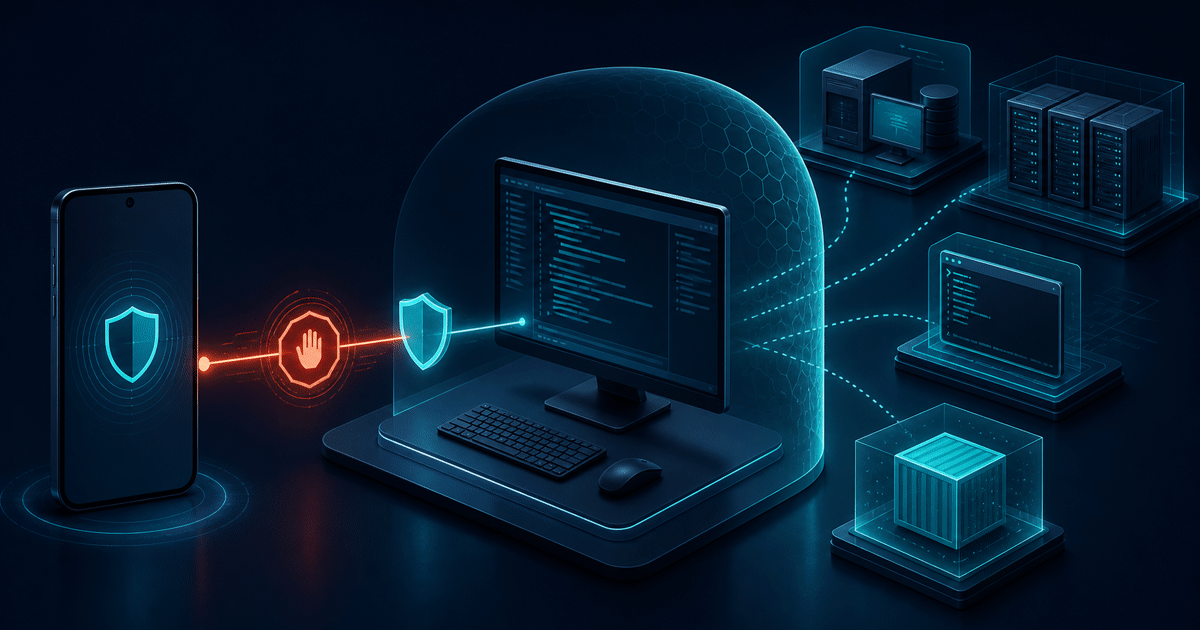
Original editorial illustration. It explains the control and runtime boundary; it is not a ZCode screenshot, live QR code, or security-test result.
Remote Control is useful when a long GLM-5.2 coding task needs a quick check from another room or a phone, but its convenience creates a scope question: what does possession of the link allow? Z.ai’s documentation says the holder can operate the connected ZCode window. That makes the URL and QR payload a bearer-like credential in our threat model, even though the documentation does not use that protocol term.
We reviewed the current first-party Remote Control, safety, Bot Channel, idle-task, product, and changelog pages on August 11, 2026. We did not pair a real workspace, generate a control URL, scan a QR code, or test the transport. This guide maps documented behavior into a fail-closed operating procedure; it is not a penetration test or uptime review.
In this guide
Section titled “In this guide”- What Remote Control does
- Prepare the desktop before pairing
- Treat the link as a credential
- What the phone can and cannot do
- Map the phone to the real runtime
- Choose a permission mode
- Compare the four ZCode control paths
- Use a six-step operating runbook
- When not to use Remote Control
- Questions people ask
- Sources and method
What Remote Control does
Section titled “What Remote Control does”The official Remote Control guide describes a phone web page attached to the ZCode application already running on your computer. The desktop remains the execution host. If ZCode is working in a local folder, commands stay local. If the desktop already entered an SSH host, WSL distribution, or Docker environment, that connected environment remains the runtime.
This distinction prevents three unsafe assumptions:
- It is not code synchronization. The documentation does not say that the repository moves to the phone or to a separate Z.ai cloud workspace.
- It is not a new remote-development connection. The phone cannot create a new SSH, WSL, or Docker connection. Configure and verify that environment on the desktop first.
- It is not restricted to the paired task. Z.ai says the phone can navigate the current desktop window’s workspaces, tasks, and sessions. The workspace visible during scanning is not a capability boundary.
ZCode’s current product page describes the application as deeply integrated with GLM-5.2. Remote Control does not change the selected model, access plan, repository state, shell identity, network reachability, or tool permissions. It changes where the human sends instructions and reads progress. Model and execution controls still belong to the desktop session.
That is why Remote Control belongs after the GLM-5.2 agent setup decision, not before it. Choose the client, model route, project, runtime, and permission policy at the computer. Pair only after those choices are visible and correct.
Prepare the desktop before pairing
Section titled “Prepare the desktop before pairing”Pairing should be the last setup step. Before opening the QR dialog, record a small preflight receipt:
| Field | What to verify on the desktop | Why the phone view is not enough |
|---|---|---|
| ZCode window | The exact window contains only the workspaces you intend to expose | Mobile scope follows the current window, not just the scanned workspace |
| Account and plan | The expected signed-in identity and current access route | A task can consume the wrong subscription or touch another account’s project |
| Workspace | Repository path, branch, and current task | Similar project names are weak identifiers |
| Runtime | Local machine, named SSH host, WSL distribution, or Docker environment | The phone cannot create a missing connection or prove host identity |
| Working tree | Current diff, untracked files, and ownership of existing changes | Remote convenience does not authorize overwriting someone else’s work |
| Permission mode | Confirm Before Changes or another deliberately chosen mode | Pairing does not reduce the impact of broad edit or command permission |
| Stop plan | Where Stop and Refresh are, plus how you will verify disconnection | Closing the dialog is not revocation |
For a consequential repository, use a dedicated ZCode window with only the intended project open. Remove unrelated workspaces from that window, keep secrets out of visible task text, and make the target branch and runtime name part of the first mobile status message. These are defensive recommendations derived from the documented window scope; they are not claims that ZCode isolates one window from every desktop resource.
Capture the baseline with tools appropriate to the repository: branch name, git status, test result, deployment target, and any pending external operation. A phone screen is good for monitoring a known state. It is a poor place to discover that the desktop was already on production, connected to a privileged host, or carrying an unrelated dirty diff.
Do not put the live QR code in a screenshot for the runbook. Write the steps without the payload. If another person needs access, use a separate approved collaboration workflow rather than forwarding the same control link.
Treat the link as a credential
Section titled “Treat the link as a credential”The official warning is unambiguous about effect: anyone who gets the link can operate the connected ZCode window. “Bearer-like credential” is our security classification of that effect. We did not inspect token format, transport encryption, expiration, origin binding, or cryptographic construction, so this article makes no claim about them.
Protect the link with the same habits used for a temporary login URL:
- scan it directly from the intended phone;
- do not paste it into chat, issue trackers, shell history, shared notes, or support messages;
- avoid screenshots, screen recordings, and clipboard sync while it is visible;
- keep the phone locked and avoid a shared browser profile;
- stop the session as soon as monitoring ends;
- refresh the QR code if exposure is possible, then confirm the old page lost control.
Two desktop actions have different meanings. Closing the Remote Control dialog hides the panel but, according to Z.ai, does not stop the connection. Stop ends Remote Control. Refresh creates a new QR code and invalidates earlier links and connections. Use Stop for normal completion; use Refresh as the documented revocation response when the previous link may no longer be private.
Revocation needs a postcondition. After Stop or Refresh, try a harmless read-only navigation from the old phone page and confirm it cannot change the selected task. Do not send a real command as the test. If the old page’s state is ambiguous, keep the desktop session paused and treat access as unresolved rather than assuming the button worked.
What the phone can and cannot do
Section titled “What the phone can and cannot do”The dated source audit separates documented capability from boundaries that Remote Control does not cross. The complete machine-readable audit contains 16 rows and source hashes.
| Mobile action or boundary | Documented result | Operational consequence |
|---|---|---|
| View and switch workspaces, tasks, and sessions | Supported in the connected desktop window | Pair only a window whose full contents are acceptable on mobile |
| Create a task | Supported in an existing workspace | Confirm the workspace and branch before the first instruction |
| Continue a GLM-5.2 task | Uses the existing desktop session | Model route and quota remain desktop-side choices |
| Reconnect a registered remote | Supported for a remote already known to the desktop | Record the remote name and verify it before use |
| Use local, SSH, WSL, or Docker runtime | Follows the desktop’s existing connection | The phone is not the execution host |
| Connect one phone page | One phone page at a time | A second page is not a collaboration mechanism |
| Create new SSH, WSL, or Docker connection | Not supported from the phone | Configure and authenticate it on desktop first |
| Browse an arbitrary unopened project | Not supported | Register or open the project deliberately on desktop |
| Limit access to the scanned workspace | Not a documented boundary | Assume the current ZCode window is in scope |
| Keep working after desktop exits or sleeps | Not supported | The machine and ZCode must remain running and online |
| Stop by closing the dialog | Not supported | Use Stop and verify disconnection |
| Revoke a possibly exposed link | Refresh invalidates prior links and connections | Refresh, then check the previous page is disconnected |
This matrix does not prove what data crosses the network. “No code sync” describes the product boundary in the documentation, not a packet-capture finding. Prompts, outputs, status, and control messages must still travel between phone and desktop for the interface to work. If your policy requires field-level data-flow evidence, wait for a vendor architecture statement or run a separately authorized test in a disposable environment.
Map the phone to the real runtime
Section titled “Map the phone to the real runtime”The execution location is determined before the phone connects:
| Desktop state | Where commands and files remain | What the phone may do | Required desktop check |
|---|---|---|---|
| Local workspace | The local computer and repository | Continue or create a task in an existing workspace | Confirm path, branch, diff, and local credentials |
| SSH workspace | The already connected SSH host | Reconnect a registered remote and steer its task | Confirm hostname, user, working directory, and privilege level |
| WSL workspace | The selected WSL distribution | Continue the registered environment | Confirm distribution, mount path, and cross-filesystem boundaries |
| Docker workspace | The already configured container environment | Continue work in that connection | Confirm image/container identity, mounts, network, and disposable state |
The phone cannot repair a missing remote definition or safely infer that two hosts with similar names are interchangeable. If the runtime disconnected, return to the desktop when identity or credentials need attention. A mobile “reconnect” is appropriate only when the expected environment was already registered and its identity can be confirmed.
For production operations, separate code generation from release authority. A GLM-5.2 task can prepare and test a change under Remote Control, while push, deploy, purchase, account, or data mutations remain behind an exact human confirmation and independent receipt. The computer-use harness guide explains why a control surface is not an authorization policy.
Choose a permission mode
Section titled “Choose a permission mode”Z.ai’s safety and confirmation documentation lists four modes: Confirm Before Changes (the default), Auto Edit, Plan, and Full Access. Remote Control does not make a broad mode safer. Start with Confirm Before Changes, or use Plan when you want to review an approach before execution.
Auto Edit and Full Access reduce friction by allowing more autonomy. That can be useful in a disposable fixture with frozen tests and a narrow writable-path allowlist. It is a poor default for a dirty repository, production-connected shell, shared account, or task that can send, publish, delete, buy, deploy, or change permissions.
The same safety page distinguishes permission/plan approvals from ordinary questions. Permission and plan approvals wait. Ordinary questions may auto-continue after five minutes unless the behavior is disabled. For a phone-controlled run, decide which unanswered questions may proceed before leaving the computer. Do not assume every approval type is available from mobile: the public pages checked for this audit do not establish that.
For long work, pair Remote Control with a bounded task contract: named writable paths, frozen evaluators, retry limits, stop conditions, and external verification. Our GLM-5.2 Goal-contract test covers that layer. Goal state defines what completion means; Remote Control changes where the human observes and steers it.
Compare the four ZCode control paths
Section titled “Compare the four ZCode control paths”Remote Control is one entry channel, not a replacement for every ZCode feature.
| Path | Human entry point | Runtime | Best fit | Important boundary |
|---|---|---|---|---|
| Remote Control | Temporary phone web page from QR/link | Existing ZCode desktop window and connected environment | Short monitoring or steering away from the keyboard | Link authorizes control; Stop and Refresh matter |
| Bot Channel | WeChat or Feishu bot | Existing desktop session and machine | A longer-lived messaging entry point | Configure and revoke the bot separately |
| Remote Development | SSH, WSL, or Docker connection created on desktop | Selected remote or isolated environment | Choosing where code and commands execute | Phone cannot create a new connection |
| Idle-time task | One-shot queued desktop automation | Local project while the subscribed computer stays awake | Deferred local housekeeping | Does not appear in the mobile Remote Control list |
Z.ai’s Bot Channel guide presents WeChat and Feishu as persistent messaging routes into the existing desktop session. Use that when a managed channel fits the communication pattern; do not keep one Remote Control link as a permanent bookmark.
The idle-time-task documentation describes one-shot queued work for local projects, tied to a subscription and an awake computer. It also says those automations do not appear in Remote Control’s mobile list. If you need to schedule work and later inspect it from the phone, design those as separate steps rather than assuming one feature contains the other.
Use a six-step operating runbook
Section titled “Use a six-step operating runbook”The safest workflow records state before, during, and after the phone connection.
- Preflight on desktop. Record ZCode version, account, window, workspace, branch, diff, runtime identity, permission mode, current task, and expected harmless first action.
- Reduce scope. Remove unrelated workspaces from the window, pause other sessions, select Confirm Before Changes or Plan, and close any secret-bearing task text that the phone does not need.
- Pair privately. Generate the Remote Control link only when the phone is ready. Scan it directly; do not persist the URL or QR payload in the run log.
- Reconcile on phone. Before sending instructions, read back the workspace, task/session, runtime, branch, and baseline result. Stop if any identifier differs from the desktop receipt.
- Steer within the contract. Use bounded instructions and read-only checks first. Keep release, account, billing, permission, and irreversible writes behind exact confirmation and a unique idempotency record.
- Revoke and verify. Use Stop at normal completion. Use Refresh after suspected disclosure. Confirm the old phone page cannot navigate or issue work, then save the final diff/test/deployment receipt without the control link.
If the phone times out after an instruction, do not send it again until the desktop state is known. An ambiguous action can have completed without a mobile acknowledgement. Repeating a build is wasteful; repeating a deploy, message, or purchase can be harmful.
For multi-hour goals, include a state file that the phone can read but not silently redefine: current objective, completed checks, last known commit, unresolved blocker, allowed next action, and hard stop time. The contract should survive disconnection without granting a resumed session broader authority.
When not to use Remote Control
Section titled “When not to use Remote Control”Return to the desktop or choose a different path when:
- the ZCode window contains unrelated customer, employer, or secret-bearing workspaces;
- the phone or its browser profile is shared, managed by an unknown policy, or likely to sync links into another account;
- the computer may sleep, disconnect, reboot, or lose the already registered runtime;
- a new SSH, WSL, Docker, project, credential, or trust decision is required;
- the task can push, deploy, publish, send, delete, buy, rotate secrets, or change account permissions without an independent confirmation gate;
- an organization needs audited identity, device enrollment, session lifetime, transport, or data-residency controls that the public documentation does not establish;
- you need unattended local scheduling rather than an interactive phone control surface.
Remote Control can reduce the cost of checking a long task. It should not turn a five-minute inconvenience into a broad persistent authorization. If the control channel requires fewer safeguards than the desktop task, the channel is the weak link.
If you need a metered API or self-hosted runtime instead of a ZCode subscription workflow, compare the distinct paths in Coding Plan vs API vs self-hosting. Remote Control applies to the existing ZCode desktop session, not to an arbitrary custom API agent.
Questions people ask
Section titled “Questions people ask”Does ZCode Remote Control upload my repository to the phone?
Section titled “Does ZCode Remote Control upload my repository to the phone?”The official guide describes the phone as a control surface and says execution continues where the desktop workspace is connected. It does not describe repository synchronization to the phone. That product boundary is not a network-capture result; prompts, outputs, and control state still need a communication path.
Does the QR link expire automatically?
Section titled “Does the QR link expire automatically?”The public page checked for this guide documents Stop and Refresh, but we did not find a supported link-lifetime or TTL claim. Do not wait for assumed expiry. Use Stop when finished and Refresh when prior possession may be unsafe.
Can the phone create a new SSH, WSL, or Docker connection?
Section titled “Can the phone create a new SSH, WSL, or Docker connection?”No. Z.ai says the phone can reconnect a remote already registered in the desktop application, but it cannot create a new SSH, WSL, or Docker connection. Establish and verify that environment on the desktop.
Is closing the Remote Control dialog enough?
Section titled “Is closing the Remote Control dialog enough?”No. Z.ai explicitly distinguishes closing the dialog from stopping Remote Control. Click Stop and verify the old phone page can no longer control the window.
Can I manage idle-time tasks from Remote Control?
Section titled “Can I manage idle-time tasks from Remote Control?”The current idle-task guide says automations do not appear in the mobile Remote Control task list. Idle tasks are one-shot local-project work while the subscribed computer remains awake; treat scheduling and phone steering as separate features.
Was Remote Control launched on August 11, 2026?
Section titled “Was Remote Control launched on August 11, 2026?”The AI HOT discovery item described the four ZCode features as launching that day. The official changelog we checked listed ZCode v3.7.5 for August 10 but did not list Remote Control as a new item in that release. We can verify current documented behavior, not the exact public-launch date, so this guide does not repeat the timing claim.
Is Full Access safe if I am watching from the phone?
Section titled “Is Full Access safe if I am watching from the phone?”Watching does not reduce command authority. Use Full Access only in a deliberately disposable or tightly bounded environment with independent acceptance checks. Confirm Before Changes is the documented default and the safer starting point for a real repository.
Sources and method
Section titled “Sources and method”We checked the following public sources on August 11, 2026:
- ZCode Remote Control — phone/desktop boundary, window scope, supported actions, link warning, Stop, Refresh, and runtime requirements;
- ZCode safety and confirmations — four permission modes and the distinction between approval prompts and ordinary questions;
- ZCode Bot Channel — WeChat/Feishu as a different entry channel to the desktop session;
- ZCode idle-time tasks — one-shot local automation limits and absence from the mobile list;
- ZCode product page and changelog — current version and the release-timing boundary;
- official GLM-5.2 release and Zhipu AI research index — required first-party GLM-5.2 checks;
- AI HOT discovery item — topic discovery only, not product or security proof;
- sanitized documentation audit — source response hashes, 16 capability rows, the channel matrix, search-intent notes, and test exclusions.
The audit made nine bounded public-source requests and two read-only Google searches. It made zero model calls and exposed no account, cookie, QR payload, project, remote host, or control URL. We did not install or open ZCode, pair a phone, inspect packets, test cryptography, measure latency, or verify every mobile prompt. Current documentation supports the operating boundaries above; it does not prove transport design, link TTL, interception resistance, uptime, or behavior after a crash.
The first-party changelog boundary matters because the discovery headline was broader than the corroborating release note. The article therefore explains what the current documentation says rather than presenting an unverified “launched today” news story. Recheck the live product pages before using the workflow, since version, availability, subscription rules, and interface can change.